preamble
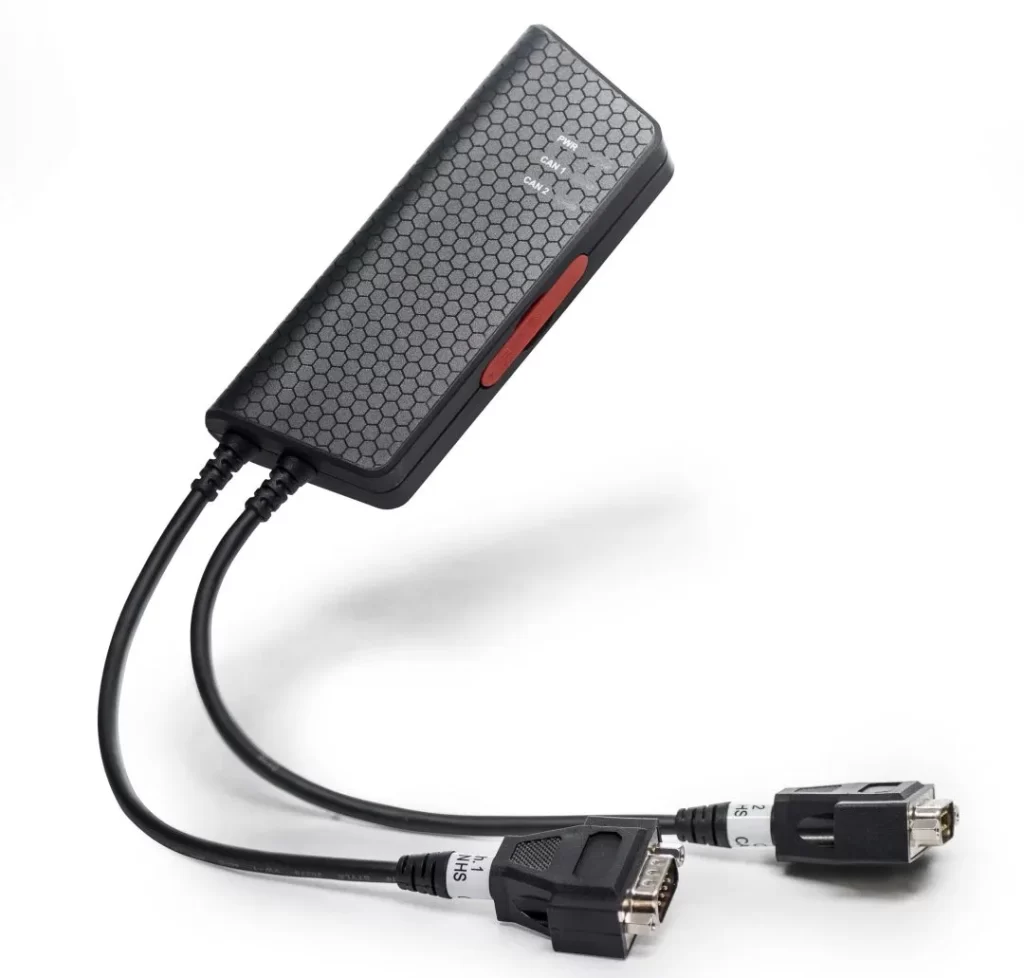
Kvaser Memorator series can be used as both data logger and CAN bus analyzer, which is commonly used for road test and after-sales correction, and is one of Kvaser's best-selling products.
More and more users are now choosing to use Memorator loggers to record CAN FD data on their vehicles. Compared to traditional CAN, CAN FD's maximum packet length jumps from 8 to 64 data bytes, while significantly increasing the data segment bit rate.
The popular Memorator Pro 2xHS v2, for example, supports transmission rates up to 1M bps for the arbitration segment and 8M bps for the data segment.
As a result, the amount of data in CAN FD packets is much larger than that of traditional CAN packets that are transmitted at 500K bps with 8-bit data length. The CAN FD packet record file generated by each acquisition also becomes very large, even up to 10GB or more. Exporting such large files not only takes a long time, but also consumes a lot of storage resources.
However, in practical application scenarios, it is often not necessary for users to analyze data for all time periods. For example, if a vehicle breaks down at 8:30 AM, we often only need to focus on the data between 8:00 and 9:00 AM. In this case, a method to derive the data for the hour starting from 8:00am can fulfill the requirement. In this article, Kvaser Memorator Pro 2xHS v2 is used as an example to introduce how to set up data segmentation.
I. Preparation
Kvaser Memorator Config Tool is required to set up the data segmentation logging (click here to download the latest version of the software).
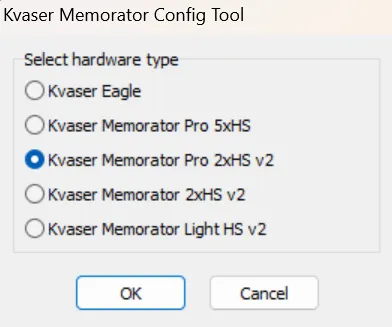
After opening the software, select Kvaser Memorator Pro 2xHS v2 in the list of devices (you can also launch it directly by clicking the Kvaser Memorator Pro 2xHS v2 shortcut in the Windows menu):
Setting Bus Parameters and Record Configuration
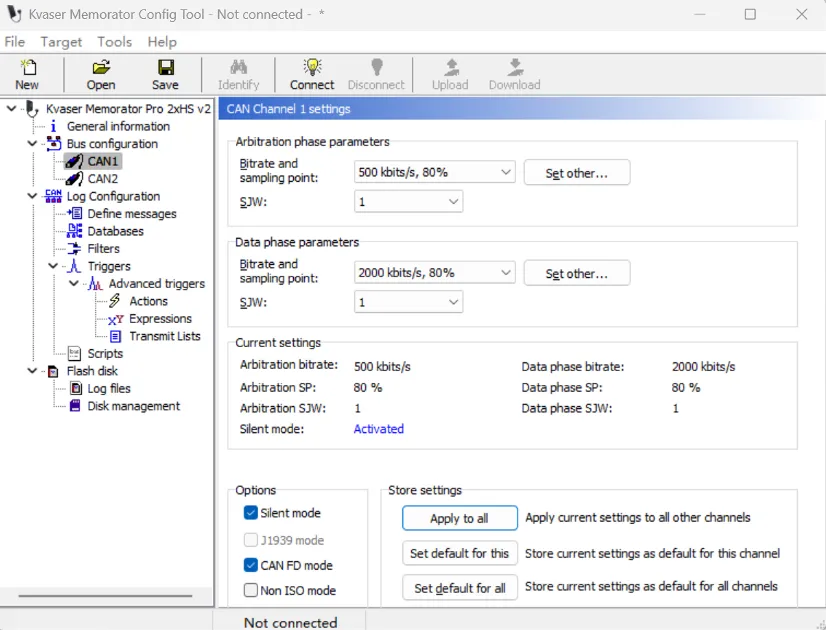
1️⃣ Set the corresponding bus parameters according to the actual demand to complete the channel configuration.
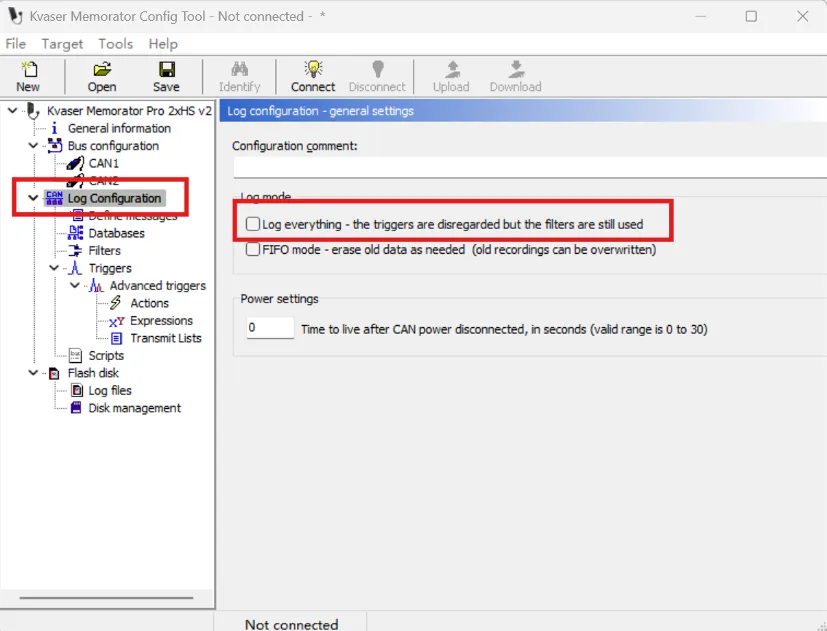
2️⃣ Select the "Log Configuration" page on the left sidebar and uncheck the "Log everything" option to prepare for triggers to be activated later.
III. New Trigger
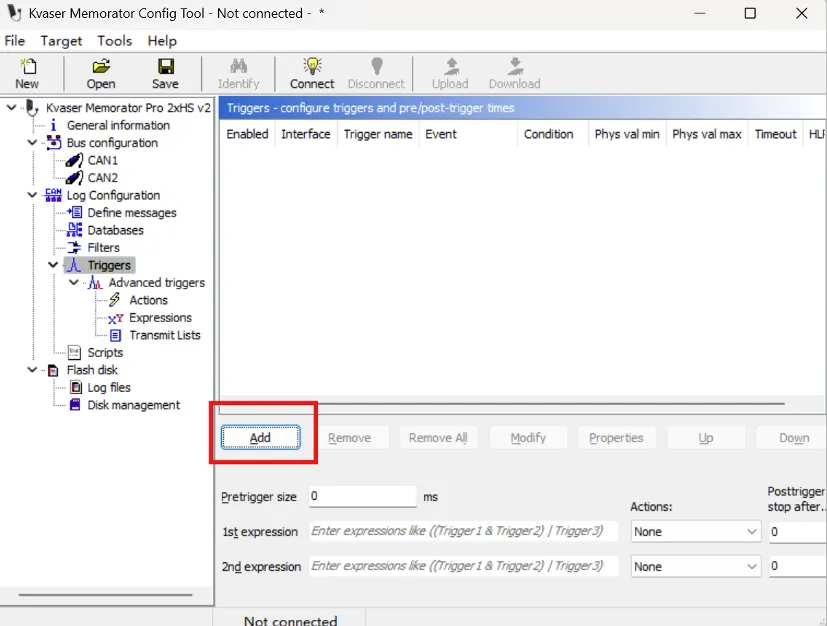
1️⃣ Select the “Triggers” page on the left sidebar, click the “Add” button to add the first trigger, which we named “Startup”, and use it to We named it "Startup", it is used to start recording data when power on:
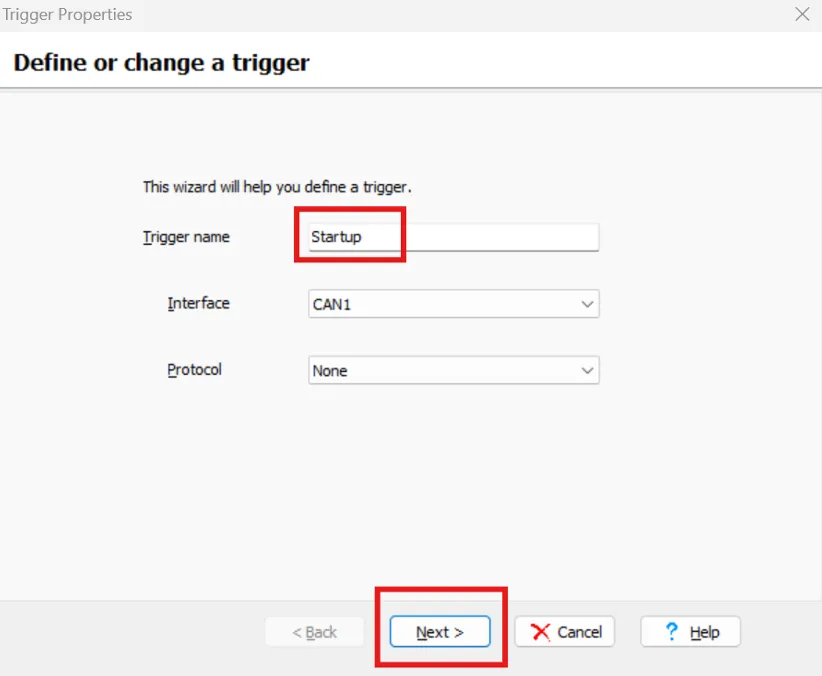
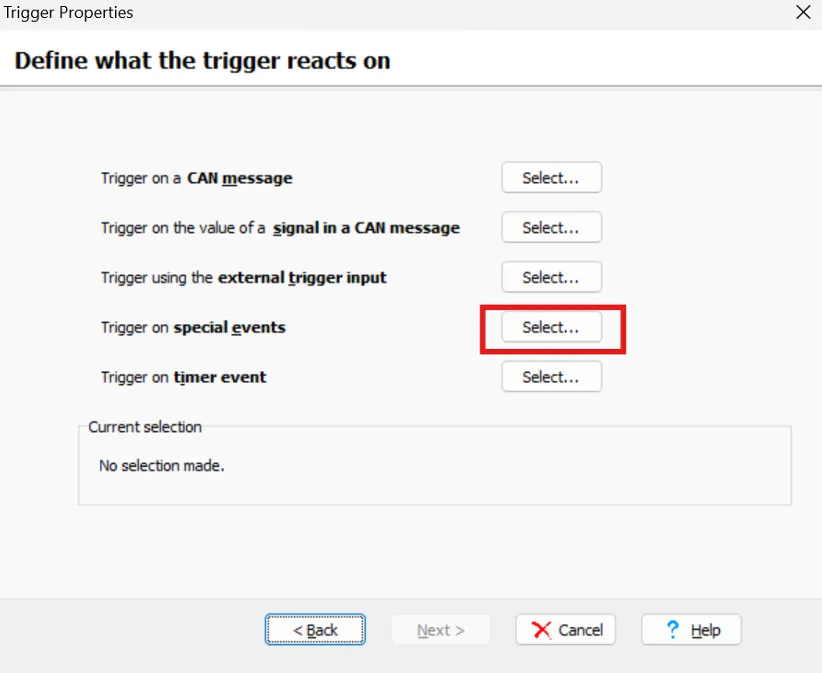
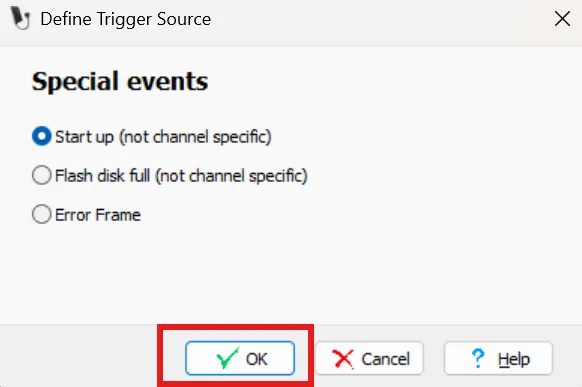
2️⃣ Click “Next”, go to “Trigger Properties” window, select “Trigger on special events”. Select “Trigger on special events” in the “Trigger Properties” window; in the next "Define Trigger Source" window, keep the default option and click the "OK" button.
3️⃣ Go back to the “Trigger Properties” window, click “Next”, and then click “Finish” in the following window. Finish the setting of the first trigger:
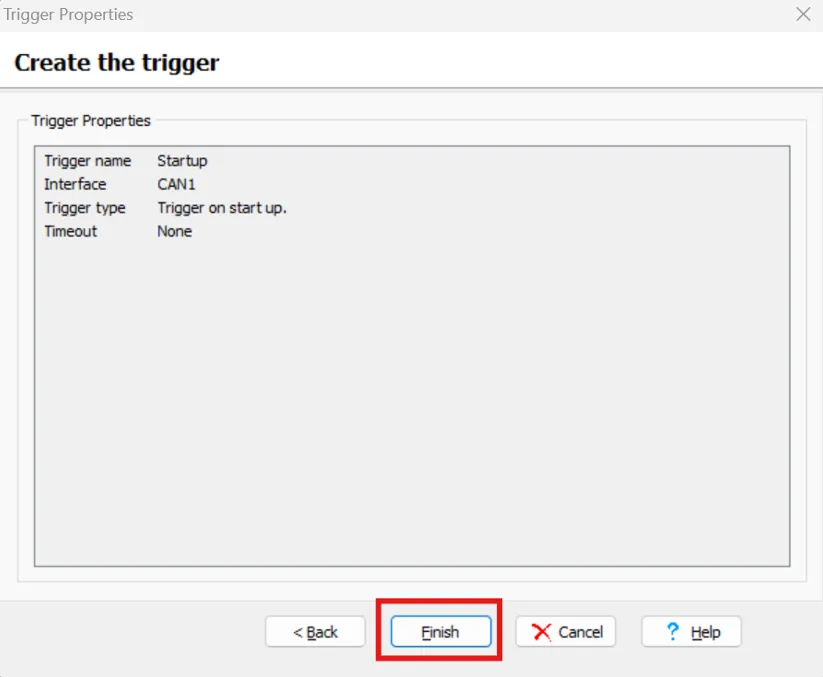
4️⃣ Next, follow similar steps to add the second triggers “ Cyclical ”
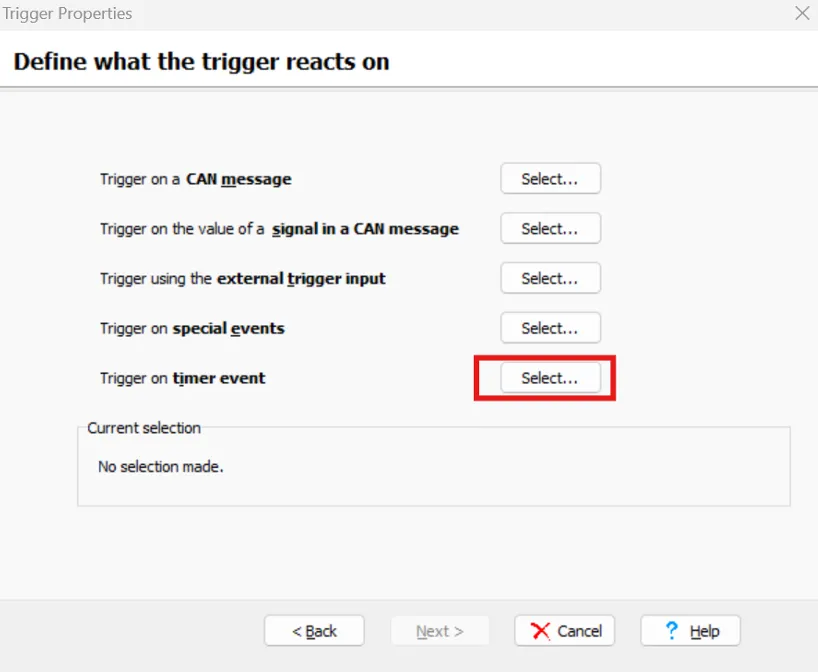
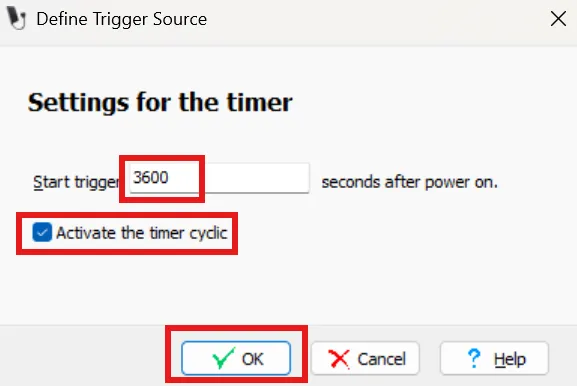
5️⃣ Since we need to segment the data on an hourly cycle, select "Trigger on timer event" and enter "3600" (i.e. one hour). At the same time, you must check "Activate the timer cyclic" and click "OK":
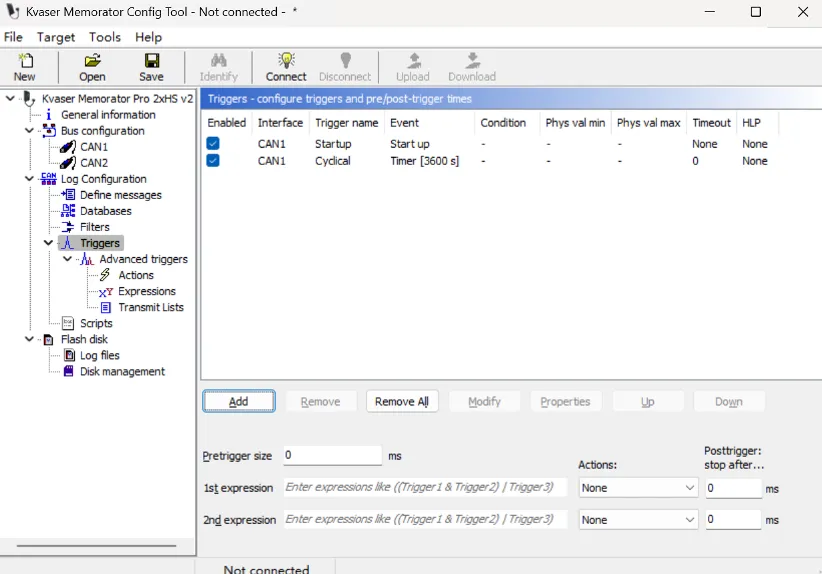
6️⃣ Then click “Next” → “Next” → “Finish” in the pop-up window, and complete the trigger setting as shown below:
IV. Configuring Trigger Functions
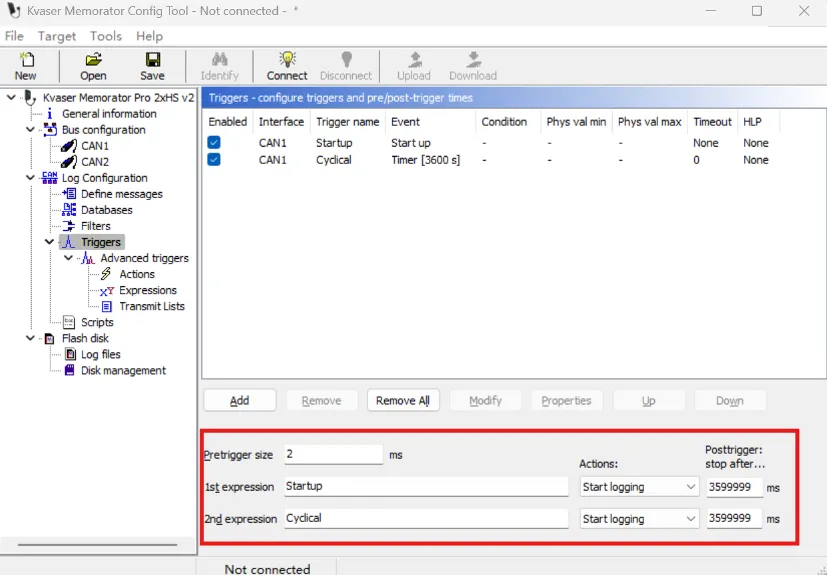
After you have finished adding triggers, you need to set the startup record function for "Startup" trigger and the cyclic startup record function for "Cyclical":
1️⃣ Set the Posttrigger of both triggers to “3599999” so that the logging starts and stops at 1 hour less than 1 ms to generate a complete log file.
2️⃣ In order to avoid losing messages between stop logging and start logging, you need to set a time greater than 1ms for the Pretrigger size, here we set "2ms":
V. Storage Configuration and Starting Records
1️⃣ After the setting is done, we can use the toolbar button "Save" to backup this setting in the computer, then "Connect" to connect to the Kvaser Memorator Pro 2xHS v2, and then click "Download" to download the setting to the logger.
2️⃣ Now, simply "Disconnect" the software and unplug the Kvaser Memorator Pro 2xHS v2's USB connector from your computer, connect it to your vehicle, and you can begin logging segments according to the settings.
The actual results are as follows:
Learn more about our products
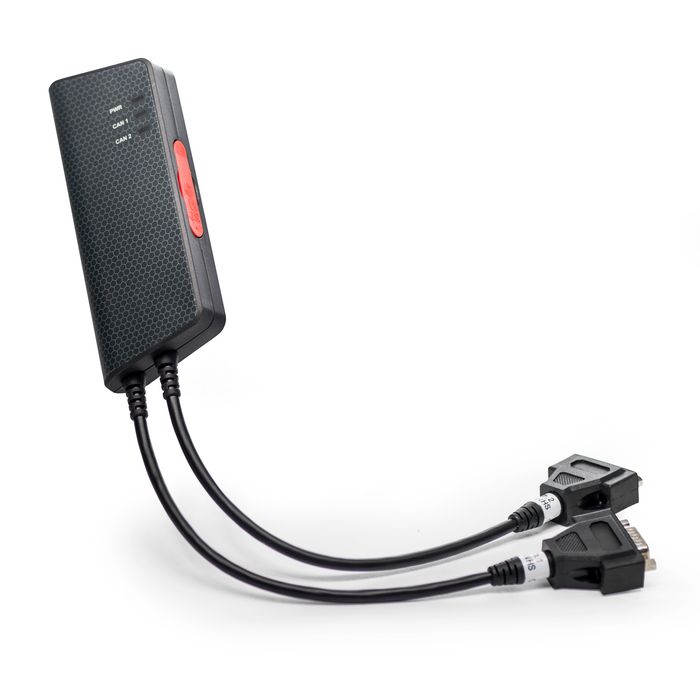
Kvaser Memorator 2xHS v2
● Supports CAN FD 8 Mbps.
● Built-in MagiSync™ time synchronization
● Kvaser t-script script support
● Error Frame Detection and Generation
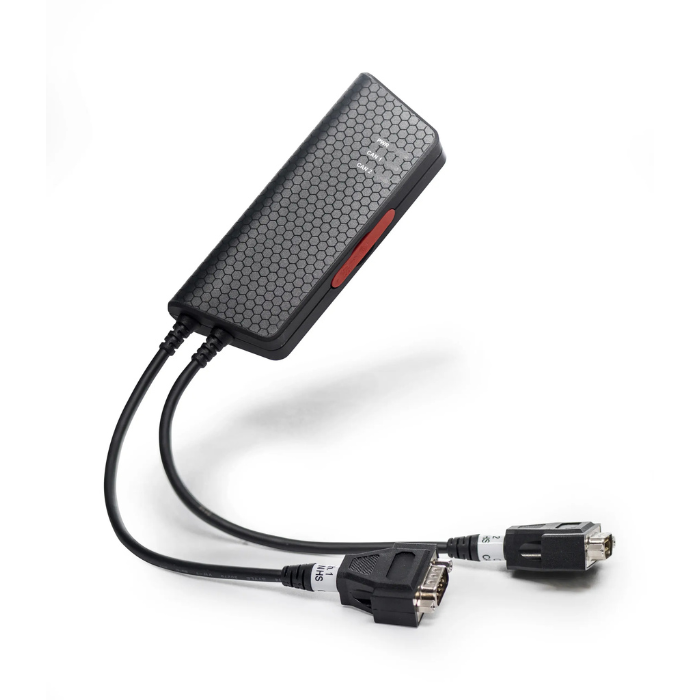
Kvaser Memorator Pro 2xHS v2
:: Dual-channel plug-and-play
●100 µs high-precision time stamp
● Silent listening without interference
Supports up to 64 GB SD card
If you are interested, you are welcome to follow us for more information about the article and contact us if you have any questions!